Installation & Binary Packages
Standalone desktop binaries for Windows 10/11, macOS (Apple Silicon and Intel), and Linux. Free and open source: no account, no ads, no tracking.
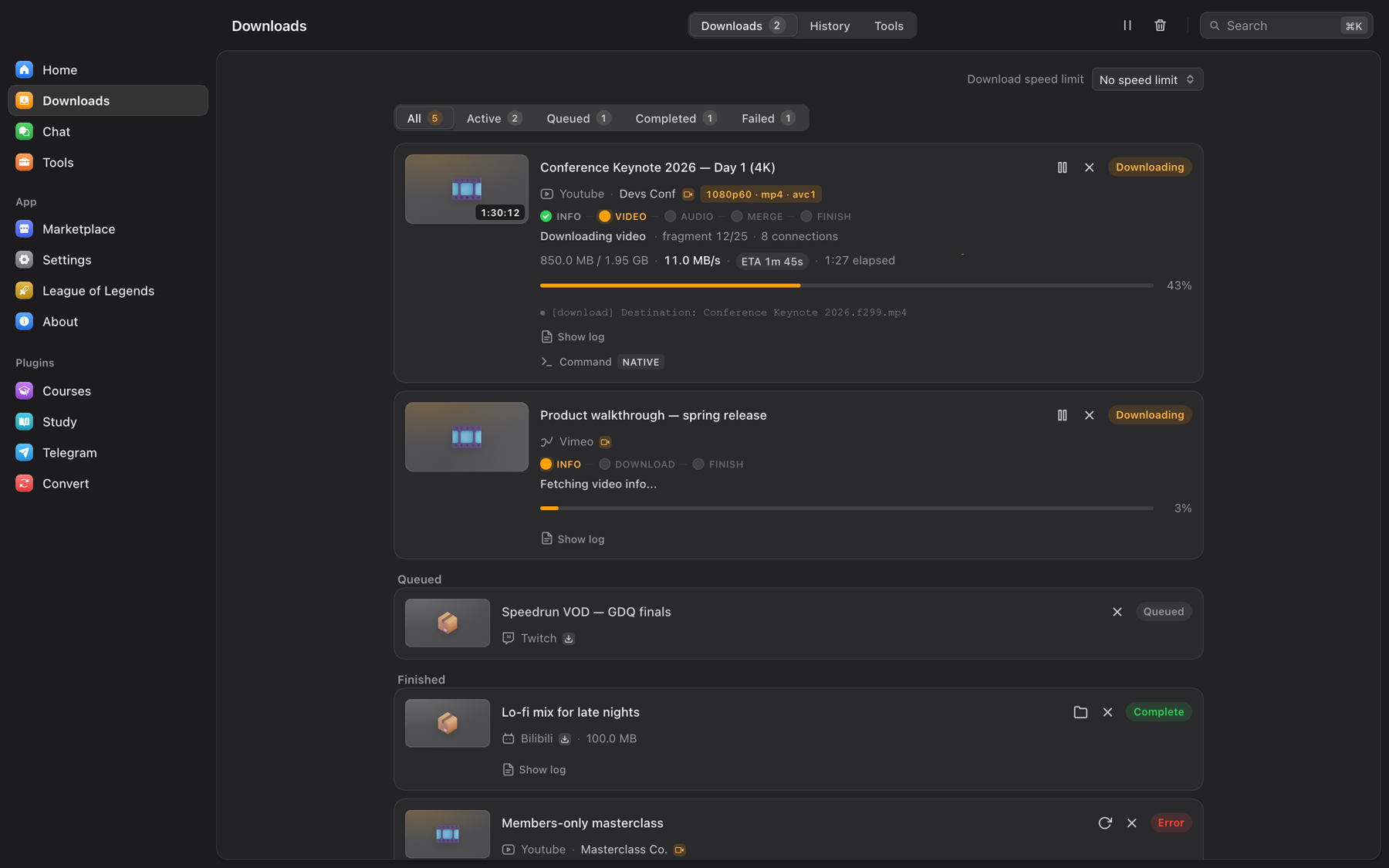
OmniGet ships precompiled binaries for Windows, macOS, and Linux under the GPL-3.0 license. No account, no ads, no tracking. The app checks GitHub Releases for updates and installs them with one click.
1. Precompiled Binary Releases Matrix
Every build is compiled directly on GitHub Actions. Download the package matching your operating system and hardware architecture:
| Operating System | Target Architecture | Package Artifact | Package Type & Details |
|---|---|---|---|
| Windows 10 / 11 | x86_64 (64-bit) | omniget_x.y.z_x64-setup.exe |
Standard NSIS desktop installer with start menu shortcuts and auto-updater. |
| Windows Portable | x86_64 (64-bit) | omniget_x.y.z_x64-portable.exe |
Standalone binary that runs without installing. For USB drives, see portable mode below. |
| CLI Companion | x86_64 / aarch64 | omniget-cli / omniget-cli.exe |
Headless terminal binary. Subcommands: download, info, batch, import-cookies. |
| macOS Apple Silicon | aarch64 (M1 – M4) | omniget_x.y.z_aarch64.dmg |
Native ARM64 build for Apple Silicon. |
| macOS Intel | x86_64 (Intel Macs) | omniget_x.y.z_x64.dmg |
x86_64 build for Intel Macs (macOS 10.15+). |
| Linux (Universal) | x86_64 / aarch64 | omniget_x.y.z_amd64.AppImage |
Universal standalone package for all Linux distributions. Self-updates via .zsync. |
| Debian / Ubuntu | amd64 / arm64 | omniget_x.y.z_amd64.deb |
Native Debian package with desktop icon, MIME associations, and apt dependency resolution. |
| Fedora / openSUSE / RHEL | x86_64 / aarch64 | omniget_x.y.z_x86_64.rpm |
Standard Red Hat RPM package with native system integration. |
2. Windows Setup & Winget Package Manager
Download omniget_x.y.z_x64-setup.exe and double-click to install. Alternatively, install and update OmniGet directly using the official Windows Package Manager (winget):
# Install OmniGet via winget:

winget install -e --id OpenSelena.OmniGet

# Update to latest version:

winget upgrade --id OpenSelena.OmniGetCode signing policy
Free code signing provided by SignPath.io, certificate by SignPath Foundation. Code changes and signed releases are reviewed and approved by the OpenSelena maintainers. See our Privacy Policy for how OmniGet handles data.
3. Windows Portable USB Mode (Zero-Footprint)
You can run OmniGet entirely from a USB thumb drive without leaving residual data in Windows %APPDATA% or the Windows Registry:
- Download
omniget_x.y.z_x64-portable.exeand place it in any folder or USB drive. - In the same directory, create an empty text file named
portable.txt(or.portable). - Launch the executable. OmniGet automatically redirects all SQLite database records, cookies, caches, plugins, yt-dlp, and FFmpeg binaries into a local
data/subfolder.
E:\OmniGet├── omniget_0.12.0_x64-portable.exe
├── portable.txt              <-- Triggers portable mode
└── data\                     <-- All runtime data resides here
    ├── omniget.db            <-- SQLite downloads & study history
    ├── cookies.db            <-- Session cookies vault
    ├── bin\ (yt-dlp, ffmpeg) <-- Self-managed media tools
    └── plugins\              <-- Embedded plugins data
4. macOS Gatekeeper & Codesign Fix
Download the appropriate DMG for your architecture (Apple Silicon M1-M4 or Intel). Drag omniget.app into your /Applications folder.
To clear the quarantine flag and re-sign the app ad-hoc, open Terminal (Cmd + Space, type "Terminal") and run these two commands:
# 1. Strip the macOS quarantine extended attribute:

xattr -cr /Applications/omniget.app

# 2. Re-sign the app ad-hoc:

codesign --force --deep --sign - /Applications/omniget.app
You can now open OmniGet normally from Launchpad or Spotlight. For Homebrew users, a Cask formula is also available:
brew install --cask OpenSelena/tap/omniget5. Linux Packages & GStreamer Runtime Fix
OmniGet renders its desktop interface using WebKitGTK. WebKitGTK plays all video and audio through GStreamer. If the required GStreamer audio sink plugins are missing, WebKitGTK aborts its web process upon player instantiation, resulting in an empty window.
Install the necessary GStreamer plugins using your system's package manager:
# Ubuntu / Debian / Linux Mint:

sudo apt install gstreamer1.0-plugins-good gstreamer1.0-plugins-bad gstreamer1.0-libav

# Fedora / RHEL / CentOS:

sudo dnf install gstreamer1-plugins-good gstreamer1-plugins-bad-free gstreamer1-plugin-libav

# Arch Linux / Manjaro:

sudo pacman -S gst-plugins-good gst-plugins-bad gst-libav
Ubuntu 24.04 and Debian 12 FUSE Notice: If launching the .AppImage fails with a libfuse.so.2 error, install the FUSE 2 compatibility library or run with extraction:
# Install libfuse2 on Ubuntu 24.04:

sudo apt install libfuse2

# Or launch without root permissions:

chmod +x OmniGet_0.12.0_amd64.AppImage
./OmniGet_0.12.0_amd64.AppImage --appimage-extract-and-run
6. Companion Browser Extension Setup
To download logged-in media (paid courses, Instagram stories, private playlists), install the companion extension. Because it is distributed as open-source code rather than on web stores, install it via developer mode:
- Download
omniget-chrome-extension-vX.Y.Z.zipfrom GitHub Releases (or click Export extension in Settings → Plugins → Browser extension). - Extract the ZIP archive into a permanent folder on your computer.
- Chromium (Chrome, Edge, Brave): Navigate to
chrome://extensions(oredge://extensions), enable Developer mode in the top right, click Load unpacked, and select the extracted folder. - Firefox: Navigate to
about:debugging#/runtime/this-firefox, click Load Temporary Add-on, and select the extension'smanifest.json. - Launch OmniGet. The extension communicates via local loopback (port range
47720..47729). Click the extension icon on any media tab to push authenticated cookies to OmniGet in one click.
7. Building from Source
To compile OmniGet from source, you will need Rust (pinned via rust-toolchain.toml), Node.js 18+, and pnpm:
# 1. Clone repository:

git clone https://github.com/OpenSelena/omniget.git
cd omniget

# 2. Install frontend dependencies:

pnpm install

# 3. Launch development server:

pnpm tauri dev

# 4. Build local production binary:

pnpm tauri build --config '{"bundle":{"createUpdaterArtifacts":false}}'