
System Troubleshooting & Diagnostic Guides
Fix guides for macOS Gatekeeper warnings, Linux WebKitGTK and GStreamer crashes, and HTTP 403 and 429 network errors.
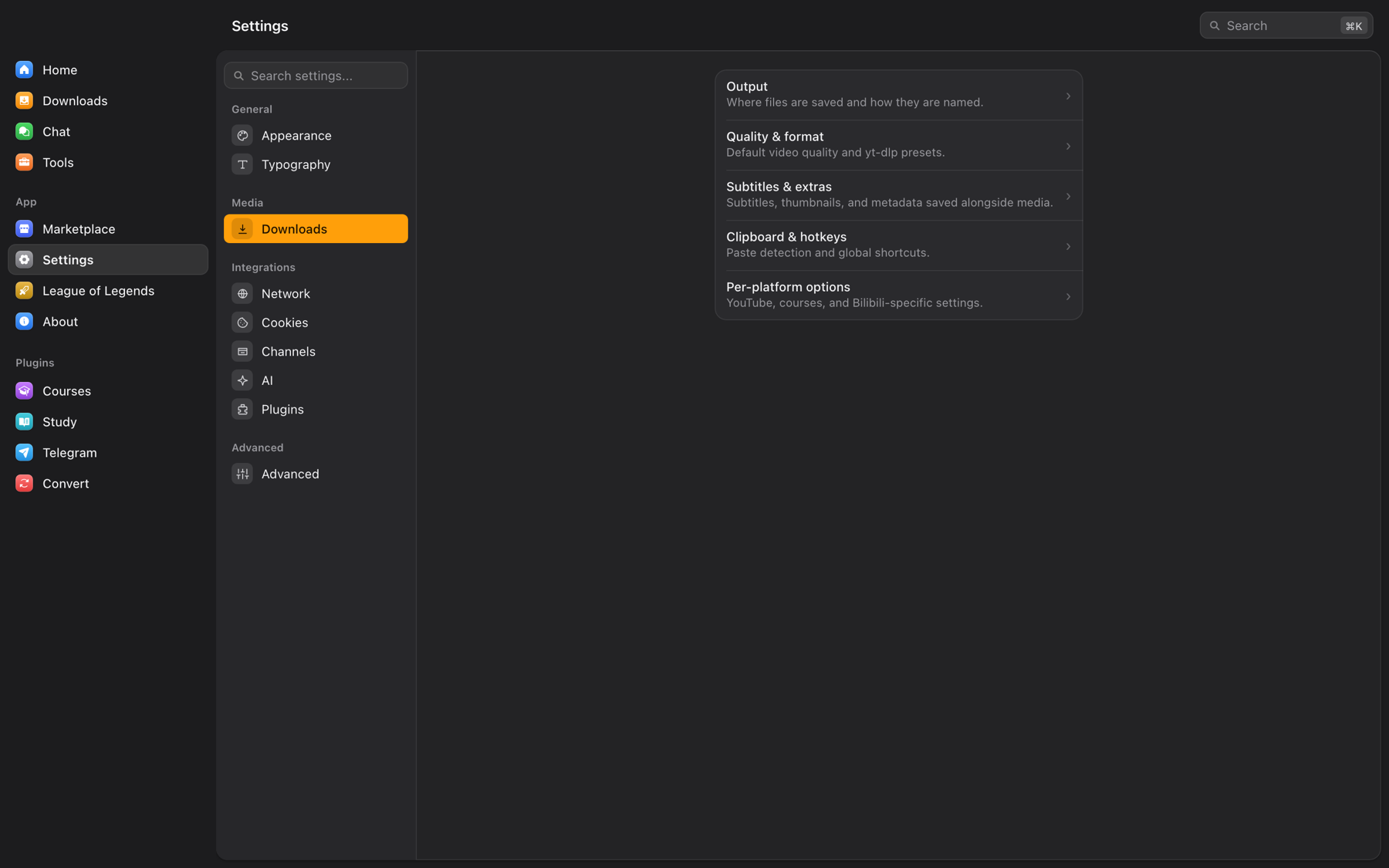
Fix steps for macOS Gatekeeper warnings, Linux WebKitGTK and GStreamer crashes, HTTP 403 and 429 errors, and browser extension pairing.
1. Diagnostic Log & Data Paths
The app stores its database (omniget.db) and settings (settings.json) in the folder for your OS below. OmniGet writes no log file: each download's output is shown in the Downloads panel, and debug logs go to the terminal the app was started from.
| Operating System | Application Data & SQLite Database Path | Debug Logs |
|---|---|---|
| Windows | %APPDATA%\com.openselena.omniget\(e.g. C:\Users\<Name>\AppData\Roaming\com.openselena.omniget\) |
No log file. Download output is shown in the app; debug logs go to the terminal. |
| Windows Portable | <ExeFolder>\data\ (when portable.txt exists) |
No log file. Download output is shown in the app; debug logs go to the terminal. |
| macOS | ~/Library/Application Support/com.openselena.omniget/ |
No log file. Download output is shown in the app; debug logs go to the terminal. |
| Linux | ~/.local/share/com.openselena.omniget/ |
No log file. Download output is shown in the app; debug logs go to the terminal. |
2. macOS Gatekeeper ("App is damaged") Fix
When opening OmniGet for the first time on macOS, Gatekeeper may refuse to launch the binary, displaying a prompt stating the application is "damaged and should be moved to the Trash".
com.apple.quarantine attribute.
To clear this flag and run the app normally, execute the following commands in Terminal:
# Strip quarantine attribute:

xattr -cr /Applications/omniget.app

# Re-sign the app ad-hoc:

codesign --force --deep --sign - /Applications/omniget.app
3. Linux WebKitGTK & GStreamer Audio Fix
On Linux, OmniGet's desktop window uses WebKitGTK. WebKitGTK plays all media through GStreamer. If the required GStreamer audio sinks are missing, WebKitGTK aborts its own web process as soon as any video or audio loads, resulting in an empty or crashed window.
Install the required GStreamer plugins to fix this crash:
# Ubuntu / Debian / Linux Mint:

sudo apt install gstreamer1.0-plugins-good gstreamer1.0-plugins-bad gstreamer1.0-libav

# Fedora / RHEL:

sudo dnf install gstreamer1-plugins-good gstreamer1-plugins-bad-free gstreamer1-plugin-libav

# Arch Linux:

sudo pacman -S gst-plugins-good gst-plugins-bad gst-libav
4. Network, HTTP 403 & 429 Rate Limit Errors
If downloads fail or stall unexpectedly, common HTTP error codes indicate the underlying cause:
- HTTP 403 Forbidden: The site rejected the download token or session cookie. Open the page in your browser, click the OmniGet Companion Extension icon to push fresh cookies to the desktop app, and retry.
-
HTTP 429 Too Many Requests: You have hit the platform's request ceiling. Navigate to Settings → Network, reduce Concurrent downloads to
1or2, and enable Adaptive Backoff. -
Proxy & VPN Configuration: If your ISP throttles or blocks media hosts, configure an HTTP or SOCKS5 proxy in Settings → Network → Proxy (e.g.
socks5://127.0.0.1:1080).
5. Browser Extension Pairing & Port 47720-47729
The OmniGet Companion Extension communicates with the desktop app over local loopback ports 47720 to 47729 (configured in src-tauri/src/local_bridge.rs with SO_REUSEADDR to survive fast restarts).
- Ensure the OmniGet desktop application is running before syncing. You can verify the local listener in your browser by visiting
http://127.0.0.1:47720/v1/health; it will return{"ok":true,"version":"0.12.0"}. - If port 47720 is occupied by another application, OmniGet automatically cycles through ports
47721to47729and persists the bound port insettings.json. - Open the extension's Options page (right-click the extension icon in your browser → Options).
- In OmniGet, navigate to Settings → Plugins → Browser extension, click Copy pairing token, paste it into the extension Options field, and click Verify Connection.
6. yt-dlp & FFmpeg Integrity Verification
OmniGet installs yt-dlp and FFmpeg on first launch and keeps them updated:
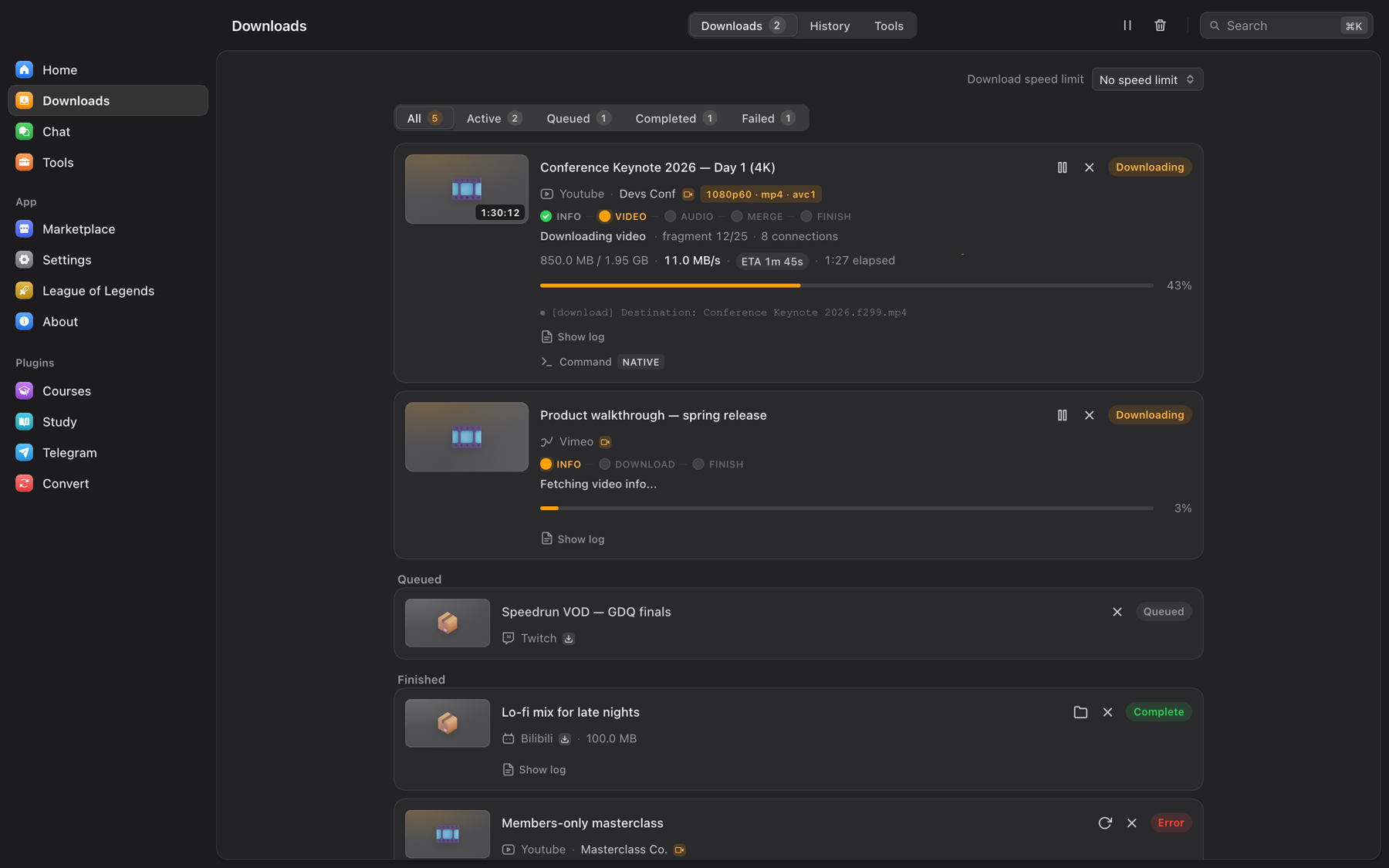
- SHA-256 checksums: Binaries are checked against the official release hashes before they run.
- Zipapp startup: When Python 3.10 or newer is present, yt-dlp runs as a zipapp on it and starts in under a second.
- Command inspector: Click any finished or failed download to see the exact yt-dlp flags it ran, edit them, and retry.